Get started with EnsoLinks
EnsoLinks separates what is open now, what you want to restore later, and what you want to keep as a reference. There are three spaces: Open Tabs, Workspace (for saved Sessions), and Library.
See where things live
Select a space below to preview it.
Workspace
Saved Sessions you can reopen. Use it when tab arrangement matters or when you want to stash what’s currently open and come back later.
A Session keeps the arrangement available to reopen; it does not turn the live tabs into a different browser window.
Library
Pages saved for reference. Collections keep them organized after the tabs are gone.
A saved page stays available as a reference after its browser tab is gone; it is not a restorable window layout.
Open Tabs
What’s open in your browser now. Moving or closing a tab here changes your browser immediately.
This panel acts on live Chrome tabs, so use it for the work that is open right now rather than for a copy to revisit later.


Choose a first task
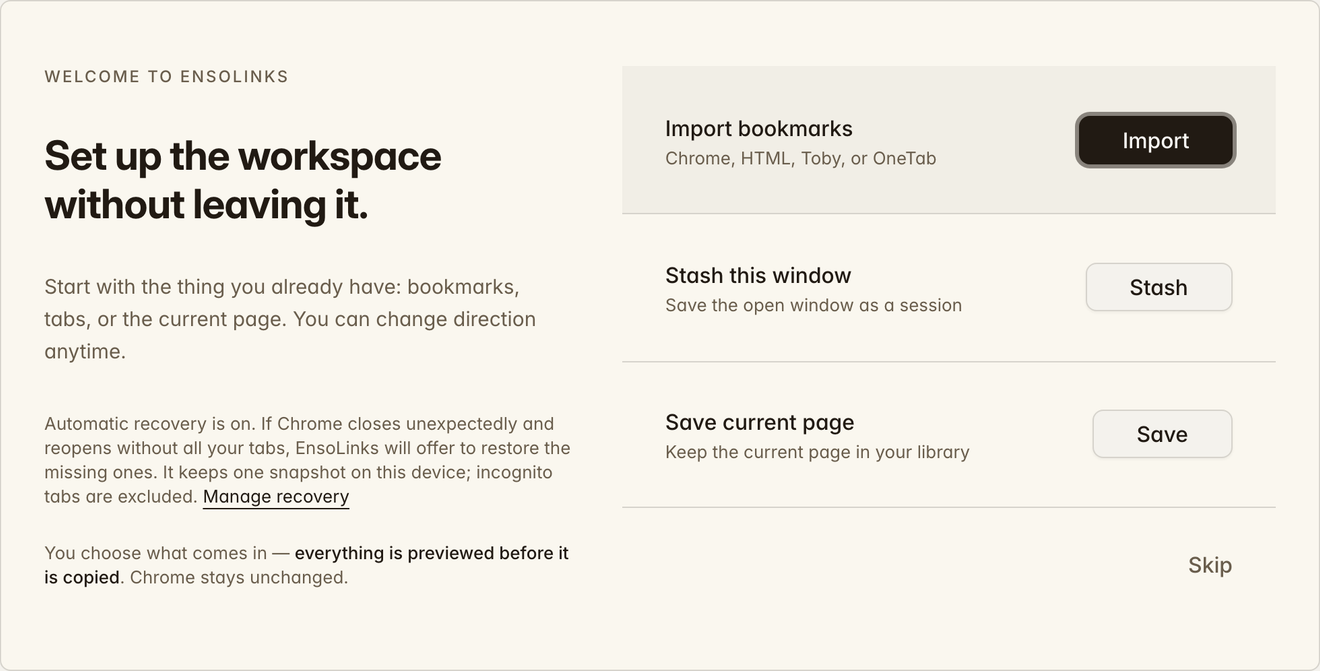
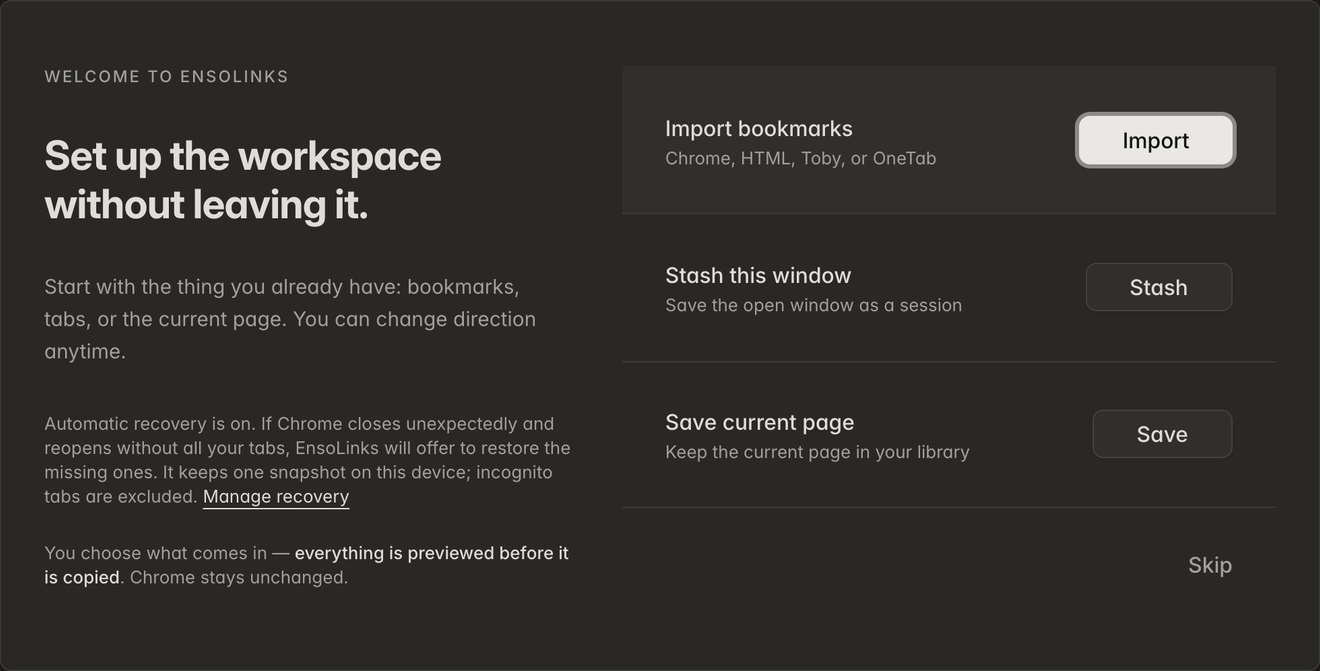
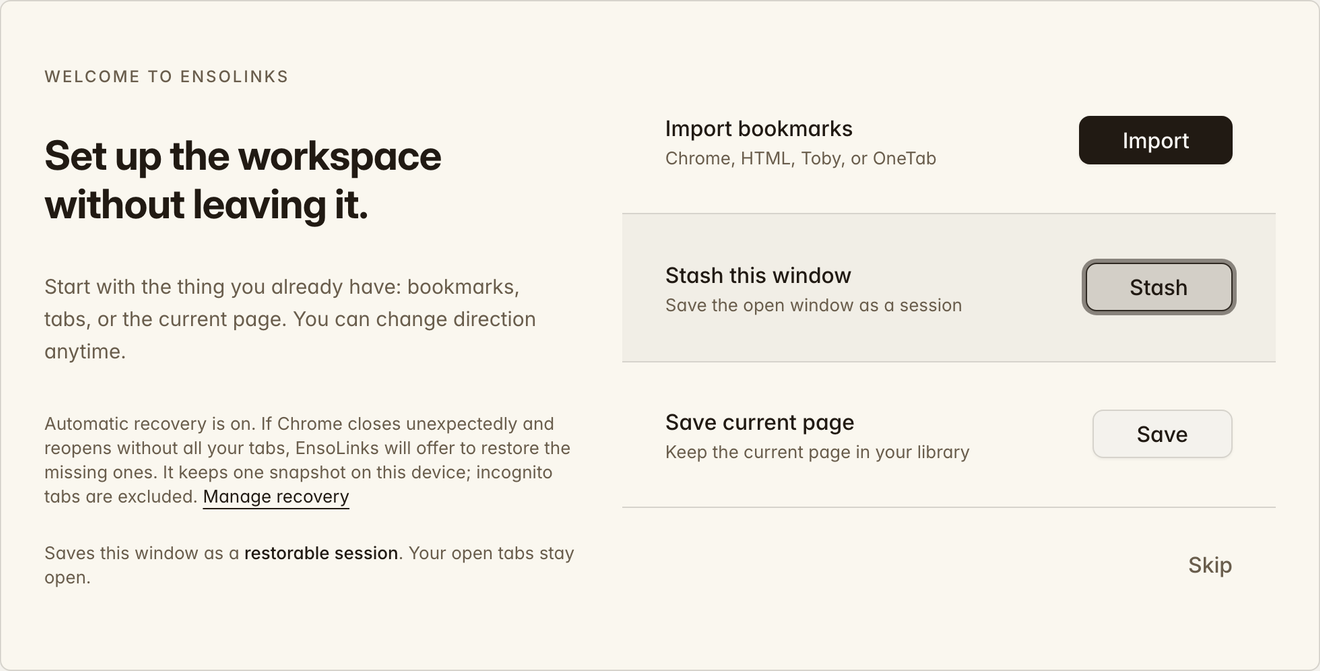
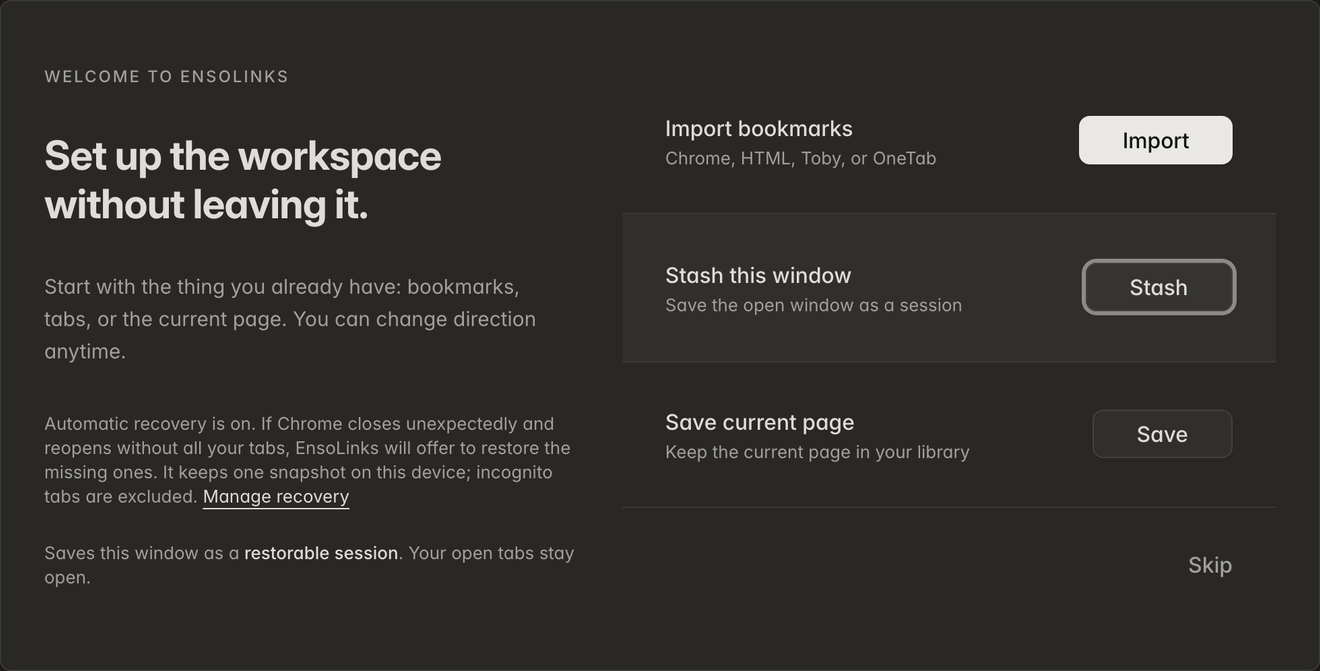
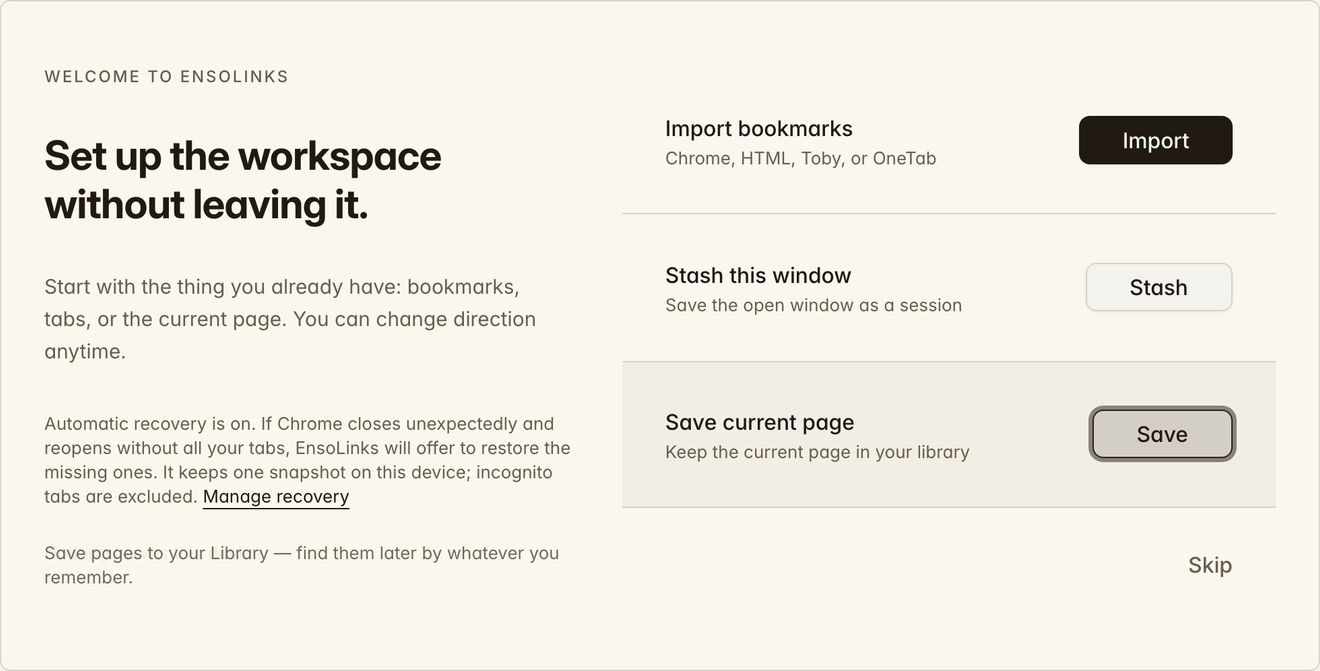
Start with the thing you already have: bookmarks, an open window, or the page in front of you. The welcome tab is pinned only for quick access; move, unpin, or close it whenever you like.
- Import what you have Bookmarks or an export from another tool Preview the source before copying it, so you can decide what belongs in EnsoLinks while Chrome stays unchanged.
- Stash this window Preview all normal Chrome windows as a Session This previews all normal Chrome windows. Check the window and tab counts before saving. Tabs stay open unless you enable Close tabs after saving session.
- Save this page Keep one bookmark in Library Save a page as a Library bookmark when you don't need to save the whole window.
Save the current page to Library
Use this when you want the page later but do not need its current window arrangement.
- 01Open the page in Chrome.
- 02Select the EnsoLinks toolbar icon.
- 03Choose an existing Library Collection, or create a new Collection from the destination picker.
- 04Select Save.
If the page is already saved, the popup shows its current destination and offers open, edit, or move instead of creating a silent duplicate.


Save a window as a Session
Use this when the combination and order of tabs matter, and you want the browser quiet afterward.
- 01Open the Chrome window you want to keep.
- 02Select the EnsoLinks toolbar icon.
- 03Choose Stash window.
- 04Review the tabs listed for this window.
- 05Select Stash tabs.
Saved tabs close after stashing. To save the layout and leave the window open, use Save window as session in Open Tabs.


Find something again
Search from the Workspace for a word you remember. Results can include Library pages, Sessions, and live Open Tabs.
- 01Open the EnsoLinks Workspace.
- 02Press ⌘ K on Mac or Ctrl K on Windows/Linux, or use the visible search control.
- 03Type a word from the title, URL, domain, Collection path, tags, notes, or other local metadata.
- 04Choose a result from Library, Sessions, or Open Tabs.
Open-tab search uses the live tab title and URL. Optional saved-page snippets and Chrome History search are off by default. You can enable them under Settings → Search.


Know what happens automatically
Automatic browser recovery is on after first install unless you turn it off.
Something unclear or not working?
Tell us what happened or what would help. Send feedback